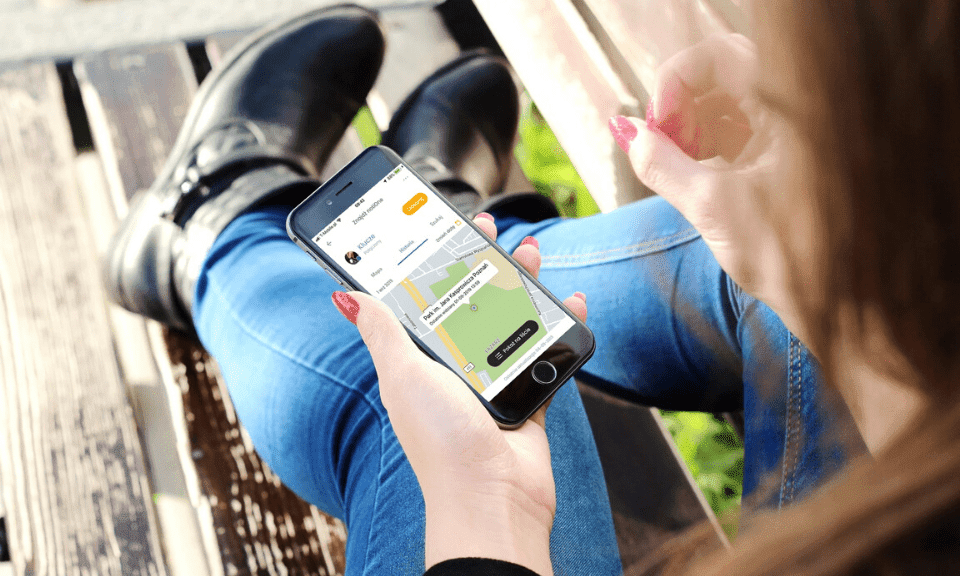
notiOne is not a GPS. As a result, the position of the item our tracker is attached to isn’t shown in the app as a continuous line, but as a series of points where the device’s signal was picked up. Can you make there be more of those dots? Yes! Here’s what to do so that your phone picks up the signal as often as possible.
It is possible to increase how often your phone picks up the notiOne signal. All you need to do is change a few settings. First and foremost, make sure your smartphone isn’t running in power-saving mode. When the device is in that mode, it restricts additional functions such as Bluetooth in order to maintain the hardware’s basic “vital functions”. That in turn affects the notiOne app – some of the app’s modules are then restricted so as not to draw too much energy, which ultimately matters when locating your key fobs.
The remaining solutions depend on your smartphone’s operating system.
iOS
First, go into the system settings and turn on Location Services:
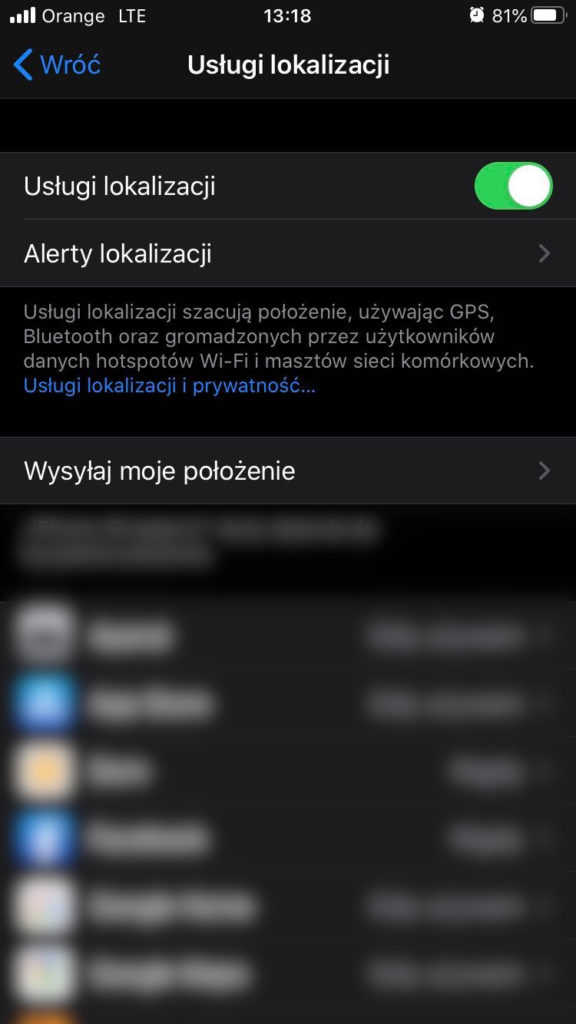
Then scroll down and find the notiOne app in the list. Once you’ve found it, go into the app’s settings. There, select the “Location” option and allow location access set to Always.
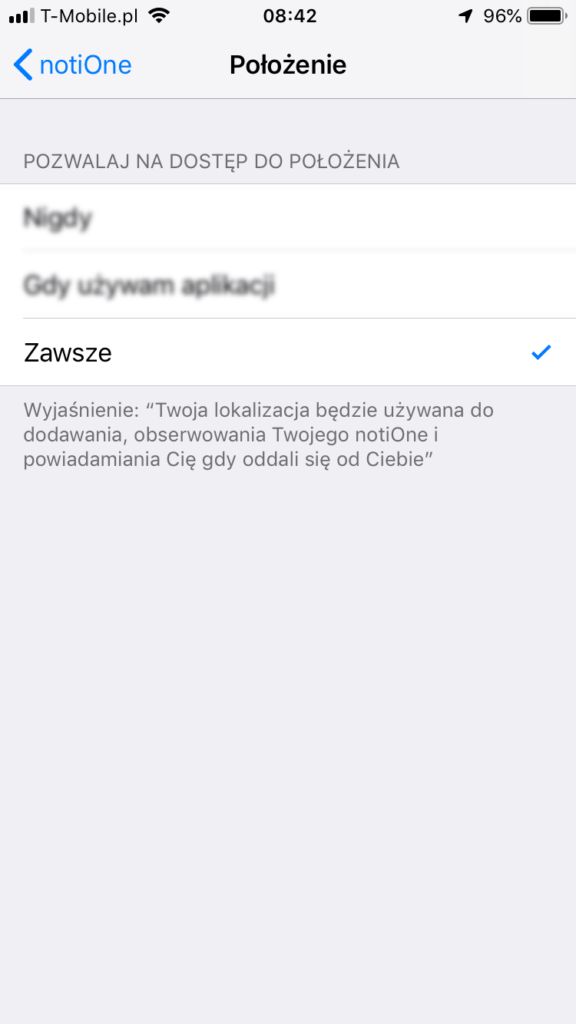
notiOne – iOS settings
! If you can’t see this option, i.e. you can only choose between “Never” and “While Using the App”, uninstall the app and download it again. Then, when reinstalling, select “Always” when asked about location permissions.
Android:
-
notiOne app settings: open the notiOne app, expand the menu on the left and select “Settings”. There, tick the box allowing Automatic Bluetooth management (which lets Bluetooth be switched on briefly the moment a notiOne signal is “heard”) and Background notiOne search. Leave power saving unticked. Save the settings.
-
Global settings: go into your phone’s settings, then choose “Apps” from the menu. Find notiOne in the list and make sure you’ve allowed access to location. Also check the “Background app behaviour” option: here the Unrestricted variant should be selected.
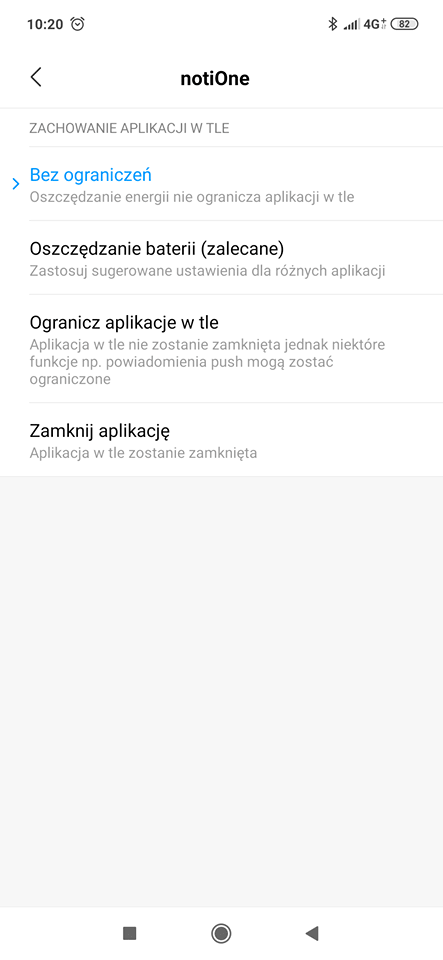
Android notiOne app settings
Similar settings can be found in the settings menu under: “Device care”→“Battery”, and then: “Unmonitored apps” – the notiOne app should be on this list.
And that’s it. Now the notiOne app should pick up the signal from your devices without restrictions! Pass this information on to your loved ones, friends and family – let them know too 🙂
And do ask your loved ones and friends to install the free notiOne app. The bigger the network of relay phones, the greater the chance of quickly finding lost items – not only your own, but those of other notiOne users too. Helping costs nothing, and it can save a lot of time, stress and money for you and for others alike.